We have a full step-by-step guide that walks you through everything - from writing your first prompt to downloading your finished video: View the Guide
If you want to see what's possible first, browse the Community Showcase. It's the best way to evaluate animation quality, see different use cases, and get inspiration. You can also remix any video you find there - using the prompt and scene as a starting point and making it your own.
We have a built-in prompt optimizer inside the prompt box - make sure the checkbox is switched on. It flags issues with your prompt and suggests improvements before you generate.
The golden formula is: a [subject] in [environment]. One focal subject + where it's located. Keep it simple and focused - the AI handles the animation style automatically.
For a full prompting guide with examples and best practices: Prompting Guide
Yes! You can upload logos, product photos, personal photos, pet photos, designs - anything you want the AI to bring to life. Upload your image(s) at the Prompt step, inside the prompt box.
Important: Just uploading isn't enough - you need to tell the AI how to use it in your prompt. Say my uploaded image and specify placement.
Example prompts:
- "Show my uploaded corgi playing in the snow wearing a bandana that says 'I ❤️ Mom', close-up"
- "Make a friendly bear hold my uploaded real estate sign with 'JUST SOLD' text"
- "Use my uploaded coffee bag on a rustic wooden table, steam rising, morning sunlight"
- "Feature my uploaded headshot as a news anchor behind a desk with 'BREAKING NEWS' headline"
Video walkthrough:
Aspect ratio is available at the Prompt step - there's a pill button directly below the prompt box.
- 1:1 (square) - Works across Instagram, Facebook, LinkedIn, and X. Most versatile if you're posting the same video across multiple platforms.
- 4:5 (tall portrait) - Instagram feed, Facebook feed. Takes up the most screen space in the feed. Recommended for feed posts.
- 9:16 (vertical) - TikTok, Instagram Reels & Stories, Snapchat, YouTube Shorts, Facebook Reels.
Video walkthrough:
Your prompt defines the starting scene only - the static scene preview that the AI then animates. You can control what's in the scene (subject, environment, props, text), but you can't control how it moves. The pop-out animation is applied automatically.
This means instructions like "make her wave", "have him walk forward", or "the dog should jump" won't work - the AI decides the motion based on the scene you've set up.
What you can control:
- The subject - who or what is in the scene
- The environment - where they are
- The composition - how they're positioned, what they're holding, what text is on signs
- The framing - close-up, full body, zoomed out
What you can't control:
- The animation or movement - the pop-out effect is automatic
- Specific actions - facial expressions, gestures, walking, dancing
Every time you animate, we create multiple unique videos from the same prompt - not just one. Each video is a different interpretation of your scene, so you get variety to choose from instead of being stuck with a single result. Here's where to find it:
Here's how it works:
- Pick 2 videos - Get 2 unique videos, uses the same credits as 1 video
- Pick 4 videos - Get 4 unique videos, uses the same credits as 2 videos
On top of that, every single video includes 1 free regeneration. So if you pick 4 videos, you use credits for 2, receive 4 different videos, and can regenerate each one once - that's up to 8 unique videos to choose from.
Why does this matter? AI video is unpredictable by nature. Sometimes the first video nails it, sometimes the third one does. Instead of charging you every time you want to try again, we give you multiple variations upfront so you can browse them, pick your favourite, and disregard the rest. The videos you didn't use don't use any extra credits.
All videos render at the same time, so you're never slowing down your workflow. Picking 4 videos takes the same amount of time as picking 1 - they all arrive together in about 60 seconds.
This also solves most common issues - unwanted elements, imperfect pop-outs, text rendering differences. If one video has an issue, chances are another variation got it right. However, if every variation has the same problem, that's usually a fundamental prompting issue - further regenerations are unlikely to fix it. You'll need to adjust your prompt or try a different type of video.
There are two types of credits, and they're completely separate:
- Download Credits - for videos made with pre-made animations
- AI Credits - for generating AI videos
If you're creating AI videos, only AI Credits are used - Download Credits are not involved at all in the AI video creation flow. AI credits are consumed at the animation step, not at download. The number of credits per generation is shown to you before you animate, right above the "Animate" button. This lets you see exactly how many credits will be used for each generation (as it depends on your settings).
Multi-generation (2-for-1):
- Pick 2 videos - Get 2 videos, uses the same credits as 1 video
- Pick 4 videos - Get 4 videos, uses the same credits as 2 videos
Free regeneration: Every single video includes 1 free regeneration. That means if you pick 4 videos, you use credits for 2, get 4, and can regenerate each once - up to 8 different AI videos to choose from.
Review the variations, pick your favourite, and disregard the ones which didn't work, as the videos you didn't use don't use any extra credits.
Credits never expire. Full breakdown: Credit System Help Article
The initial view is a static scene preview - this lets you confirm the subject, composition, text, and overall setup before generating.
There's no way to preview motion beforehand. The animation step is where the heavy AI rendering happens, which is why credits are consumed here. This is standard across all AI video platforms (Runway, Pika, Luma Dream Machine all work the same way).
Make the most of your scene preview: Check it carefully before animating. You can regenerate your scene preview as many times as you want - scene previews don't use any credits.
Before you animate, check for:
- Text clarity - can you read all text easily? If you're squinting, the AI will struggle too. (Why does my text look different?)
- Logo visibility - is your logo big, bold, and not hidden behind the subject? (Why does my logo look different?)
- Subject framing - is the subject fully visible with at least torso + head showing? Nothing blocking their path forward? (My subject didn't pop out)
- Obstructions - if you have text or a logo on a banner, wall, or background element, make sure it's not covered by the subject. When the subject pops out, the AI will try to reconstruct whatever was hidden behind them (Text obstruction)
- Background colour - avoid predominantly white backgrounds, they conflict with the social post area below (Unwanted elements)
See what's possible: Community Showcase
Credits are only used when you animate your final video. Everything before that point is free.
Before animating, you can edit your prompt, regenerate your scene preview, and update your captions at the Layout step - all without spending any credits. The scene preview is your last checkpoint before credits are used, so take advantage of it to catch typos, composition issues, or anything that looks off.
If you edit an AI video after it's been rendered, yes, that uses credits. If you rendered a video with Kling AI or Google Veo and wanted to edit it afterwards, it would use credits too - that's standard across every major AI video platform, not just Breakout Clips. By the same token, if ChatGPT or Claude send you a reply that contains a mistake, they don't refund you the tokens used for that reply. With AI video, the text, images, and motion are all generated together in a single pass rather than as separate layers, so any change means a new render.
That said, we give you more chances to get it right than most platforms:
- Pick 2 videos and get both for the credits of 1, or pick 4 and get all 4 for the credits of 2
- Every video includes 1 free regeneration
Full feature guide: breakoutclips.com/ai-video-maker/guide
That's our multi-generation feature - and it's working in your favour. You weren't charged extra.
Every time you animate, we automatically generate multiple variations so you have more to choose from. The pricing works like this:
- Pick 2 videos - You get both, uses the same credits as 1 video
- Pick 4 videos - You get all 4, uses the same credits as 2 videos
On top of that, every video includes 1 free regeneration. So if you picked 2 videos, you used credits for 1, received 2, and can regenerate each once - that's up to 4 different AI videos from the credits of a single video.
AI video generation is unpredictable by nature - sometimes one variation nails it, sometimes another does. Multi-generation gives you options so you're not stuck with a single result. Just pick your favourite and disregard the rest. The extras didn't cost you anything.
You can explore the entire platform on the free plan - the only limitation is rendering, which is where the heavy AI processing happens.
If the tool isn't for you, you'll know before buying a plan - not after. A plan doesn't unlock new features or extra steps. It simply unlocks the render button. By the time you reach it, you've already completed the entire creation process, which is enough to decide if the tool works for you.
You can learn more about how the free plan works here, or view a breakdown of our pricing here.
If you won't be continuing and you'd like us to delete your free account, submit a request to [email protected] and we'll remove your data promptly.
Before you animate, check your scene preview and ask yourself two questions:
- What is the obvious subject that will pop out? There should be one clear answer - not multiple competing subjects, not a fixed object that can't physically move, not an empty scene.
- Can it easily and naturally move toward camera? Nothing blocking its path, no awkward arm angles if holding something, and the subject isn't framed too close - for best results, they should be visible from hip to head, or full body.
If you can answer both questions confidently, you're good to animate. If either answer makes you hesitate, regenerate your scene preview - it's free, and it's easier to fix now than waste credits on a broken animation.
No subject that can pop out
The pop-out effect needs something that can physically move toward the viewer. An empty room, a building exterior, or a fixed object like a sign bolted to a wall or a clamp locked to a wheel - these can't pop out in real life, so they can't pop out in your video either.
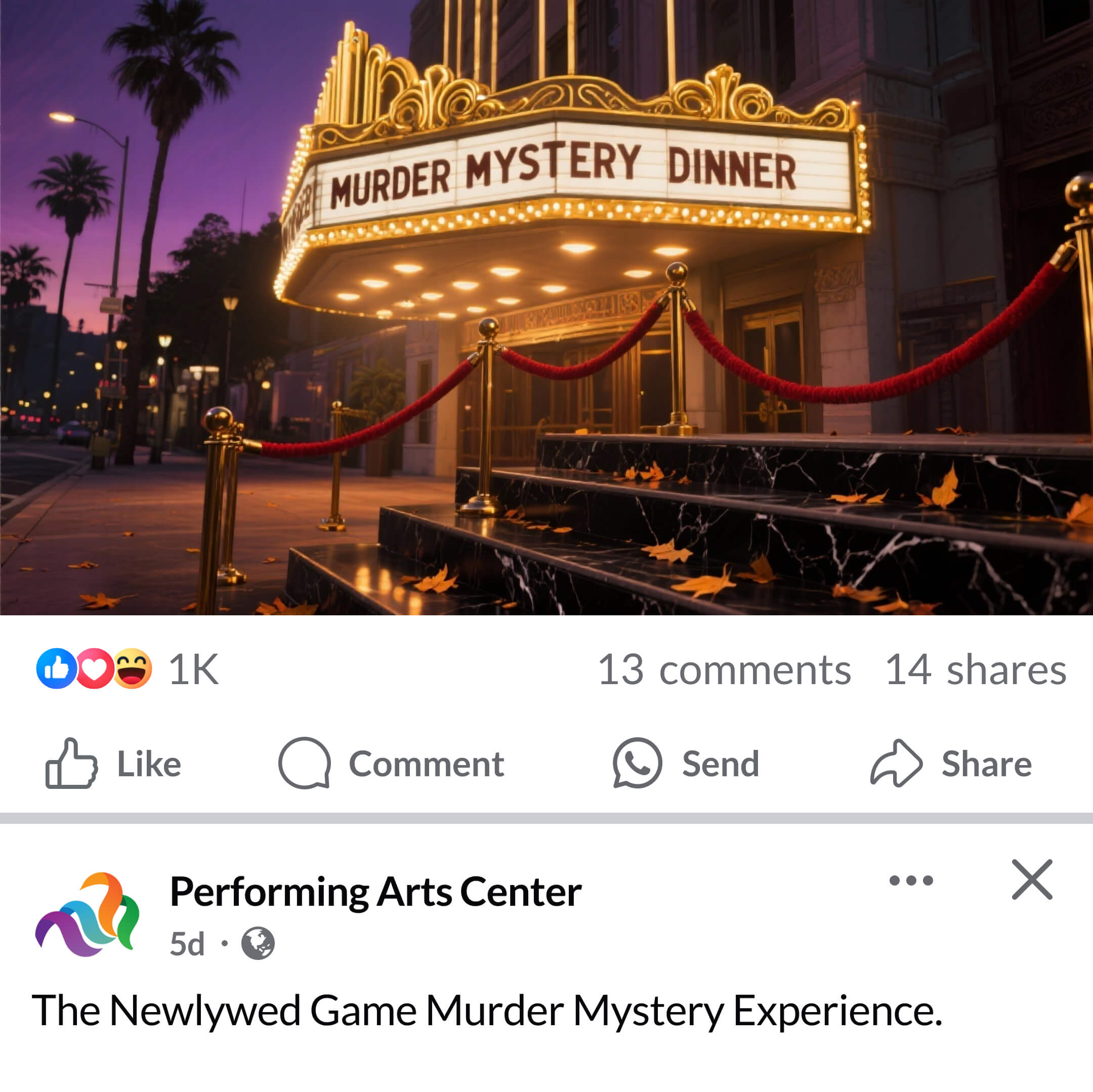
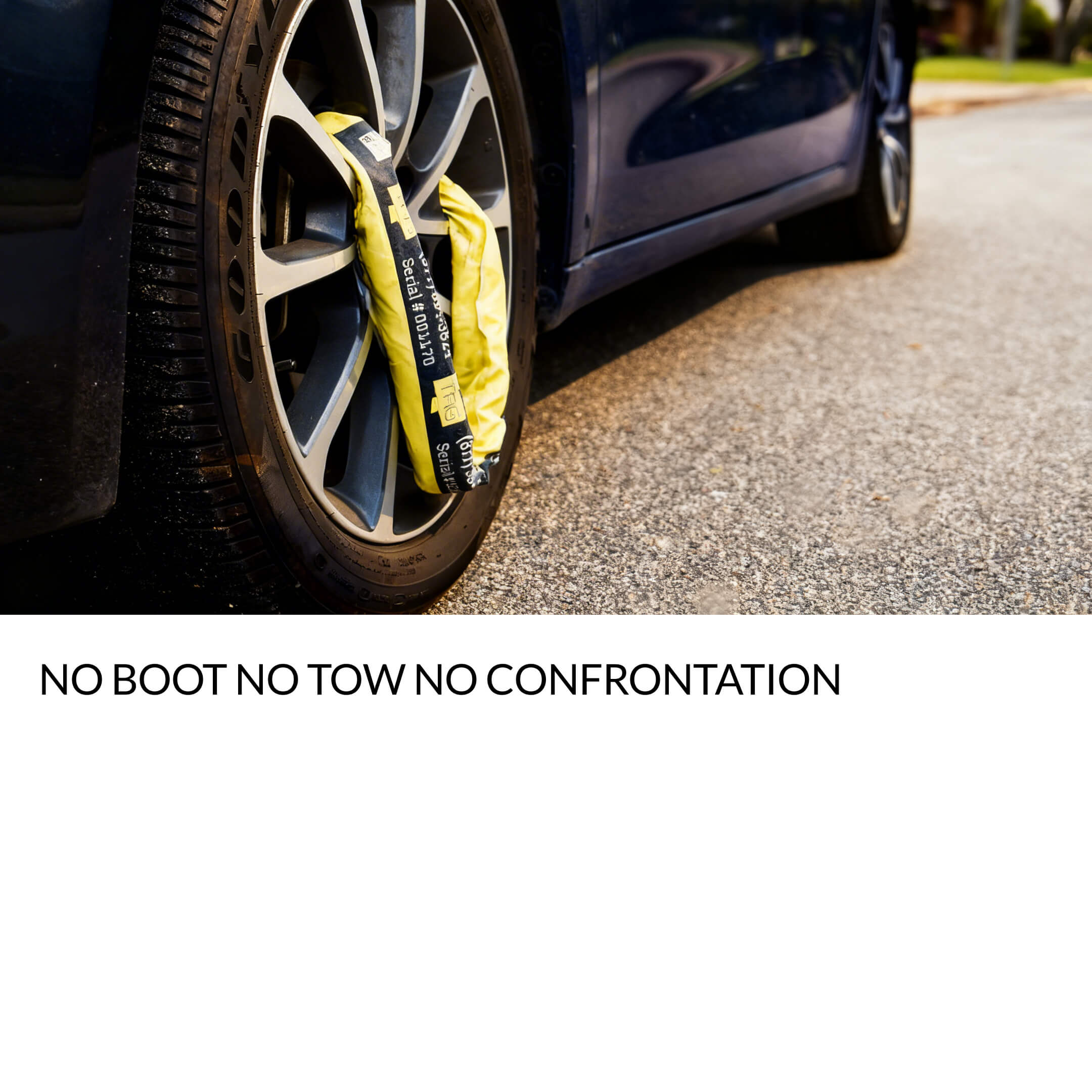
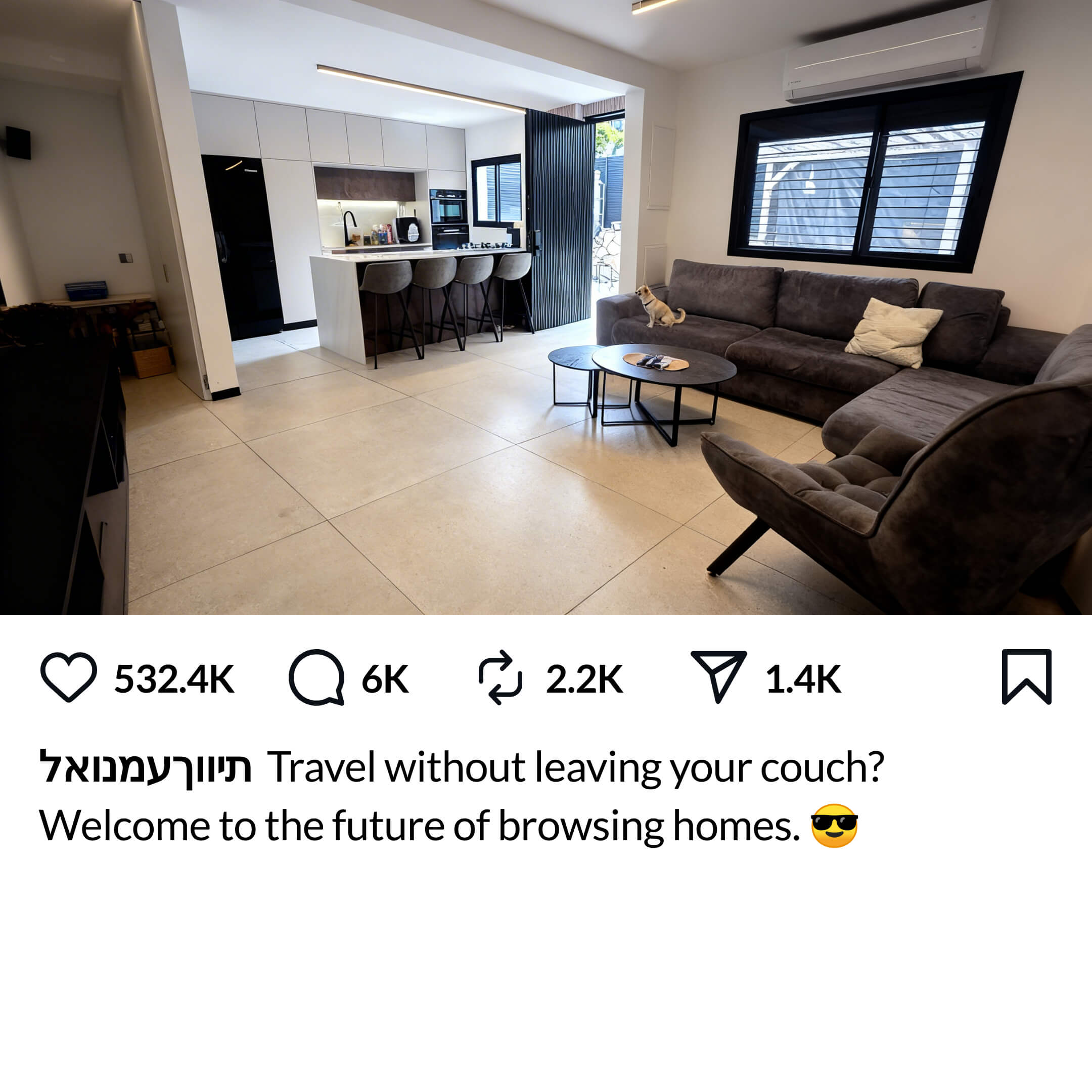
Fix: Add a subject to your scene that can realistically pop out - a person, animal, character, or movable object. To see what works well, browse the Community Showcase.
Barrier blocking the path
If there's a desk, counter, table, or any object between your subject and the camera, they can't pop through it. The subject needs a clear path forward. Think of it this way: the AI follows real-world physics - if a barrier would stop someone walking toward you in real life, it will stop them in your video too.
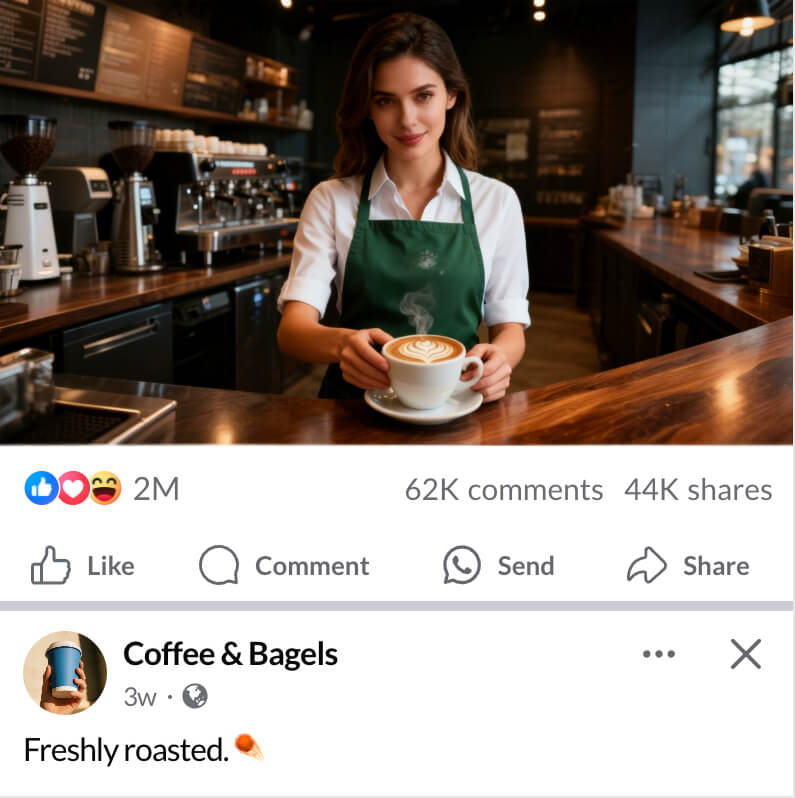
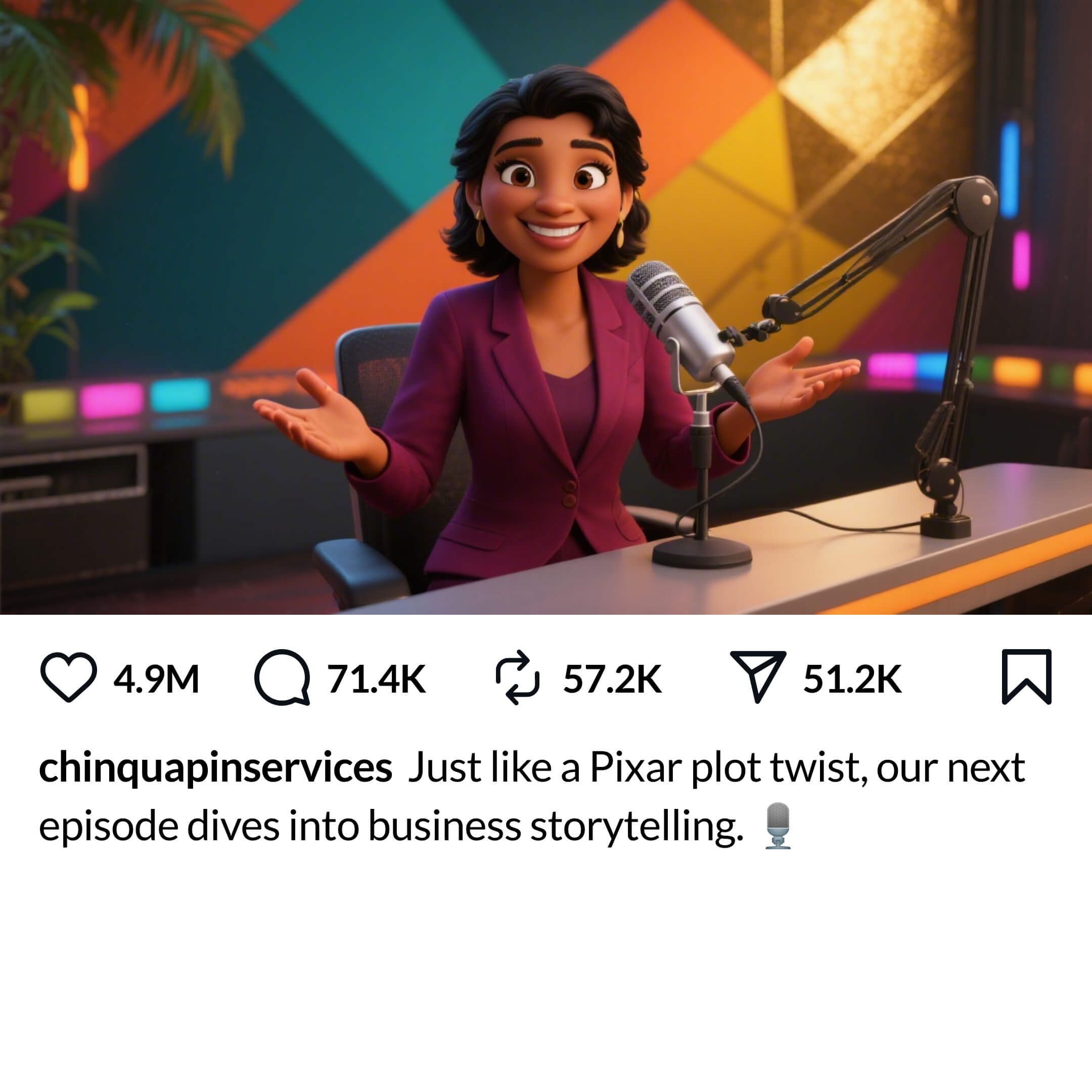
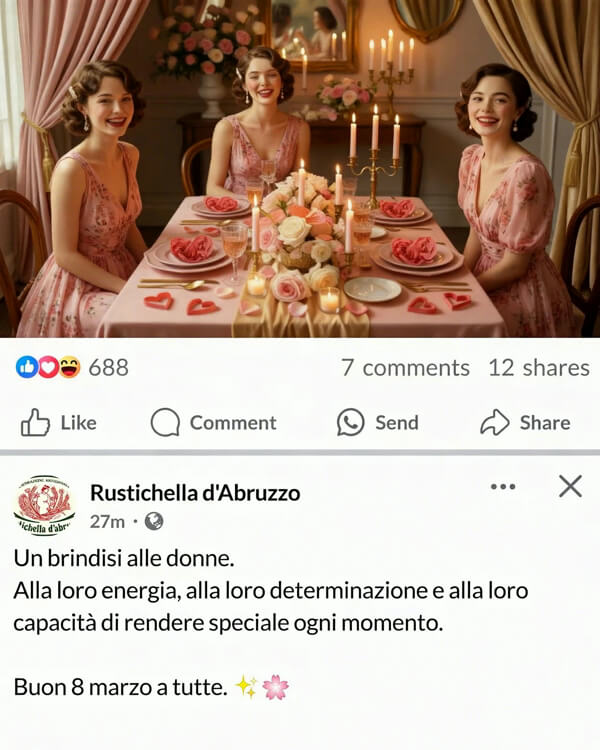
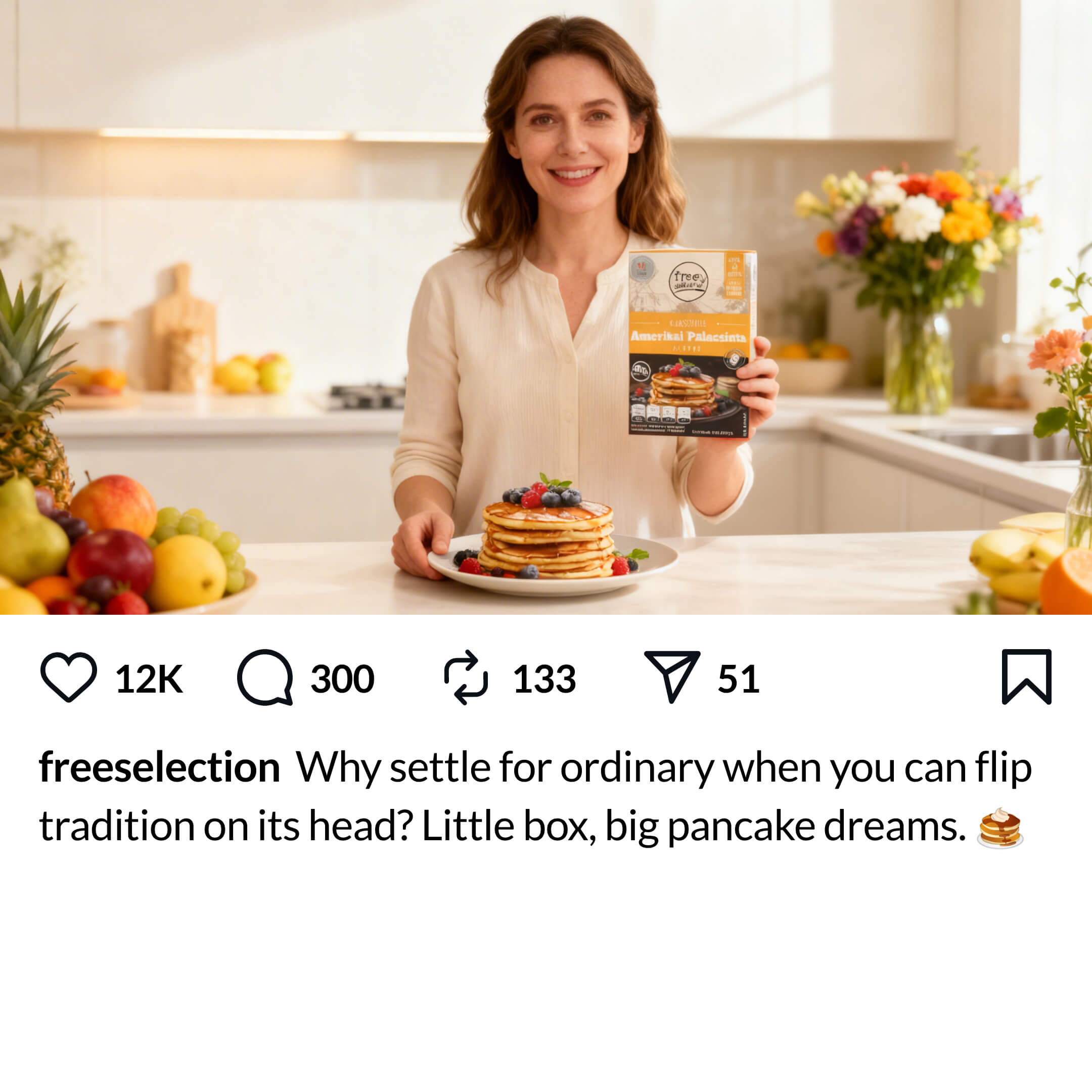
Fix: If the AI keeps adding a barrier, be explicit in your prompt: "no desk", "standing in open space", or "nothing between subject and camera". See what works in the Community Showcase.
Product held at an awkward angle
Look at the woman holding the product below - how would that product naturally pop out? If she brought it forward, her arm would need to pass directly through the white social post area below instead of over it, which doesn't make for a good pop-out. The framing is too tight. You need to zoom out and allow more space, giving her arm the room it needs to extend naturally toward the camera. Check the fix below for the right framing terms to add to your prompt.
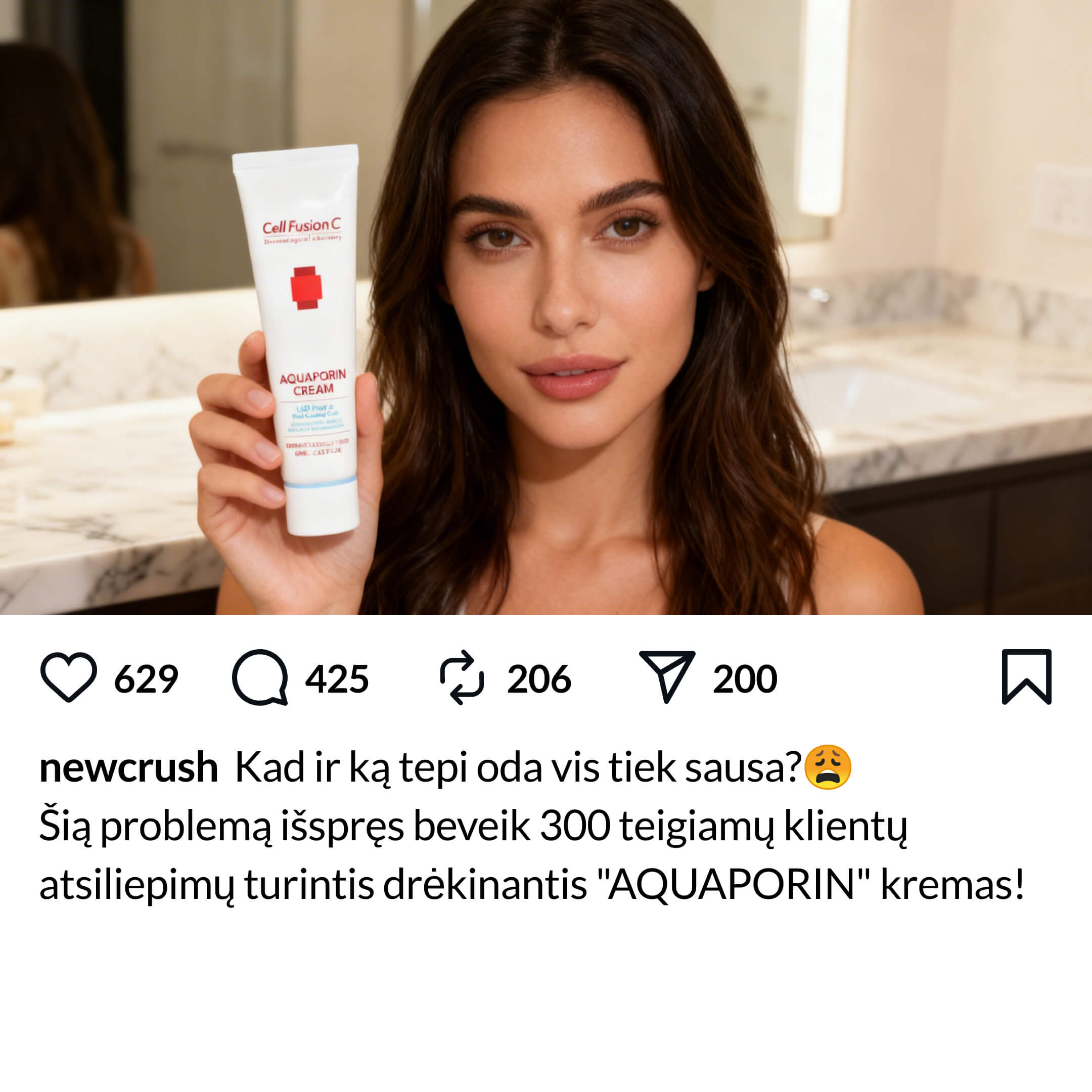
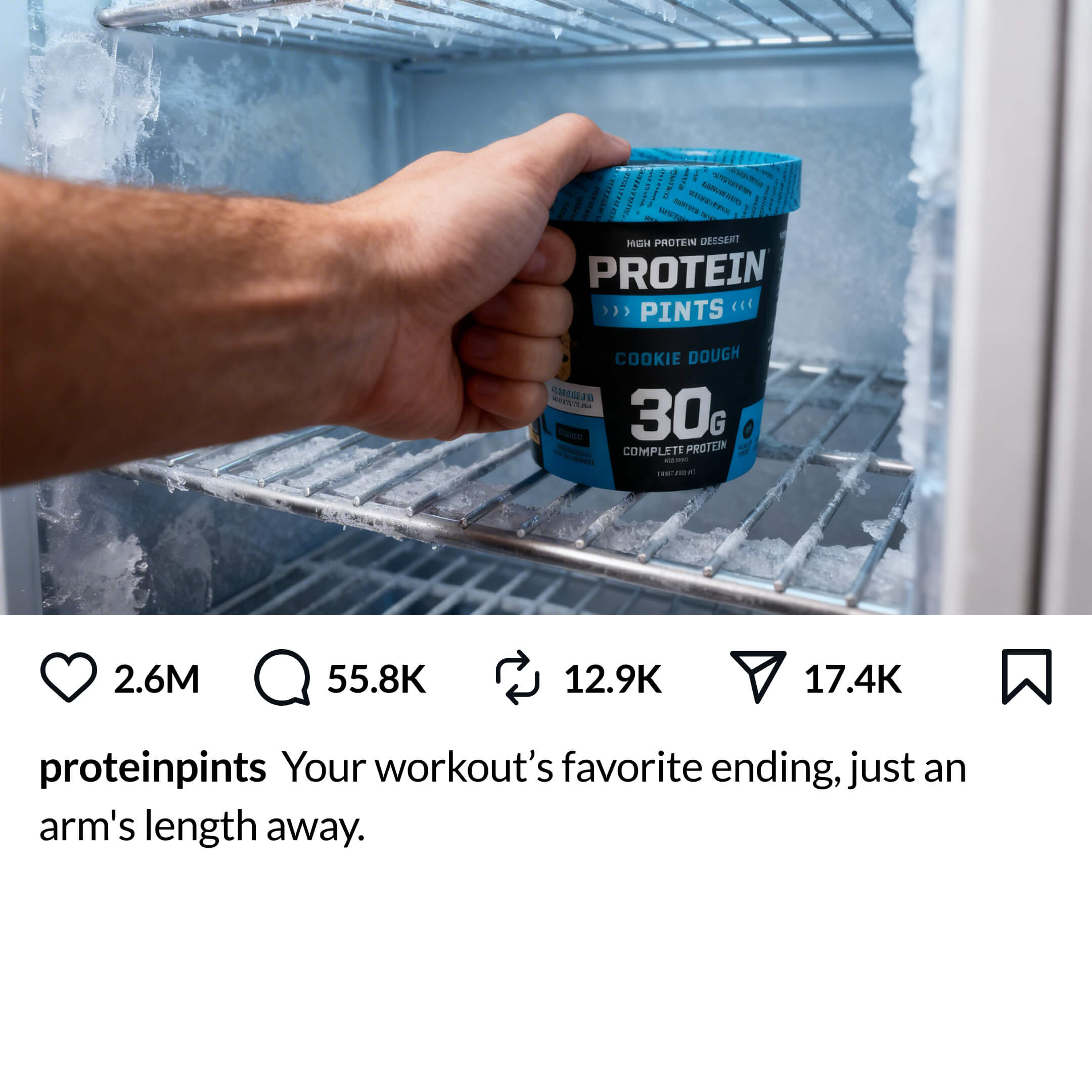
Fix: Position the product at chest or waist level, with enough spacing in the scene for everything to naturally pop out. Add the below phrases to your prompt to force the right framing.
Add close up shot to your prompt to get hip-to-head framing (more space to allow a clean pop-out). Best for product shots.
Add full body shot to your prompt. Best when holding a big enough product - if the subject is far back and holding something small, the product will be tiny in the starting frame and won't be clear when it pops out.
Framing too close
If the camera is so close that only the face fills the frame, what exactly would pop out? A disembodied head flying toward the viewer isn't the effect you're after. The pop-out works best when there is adequate spacing (you can see the subject's upper body - at minimum their arms, torso and head - so there's something substantial to 'pop out').
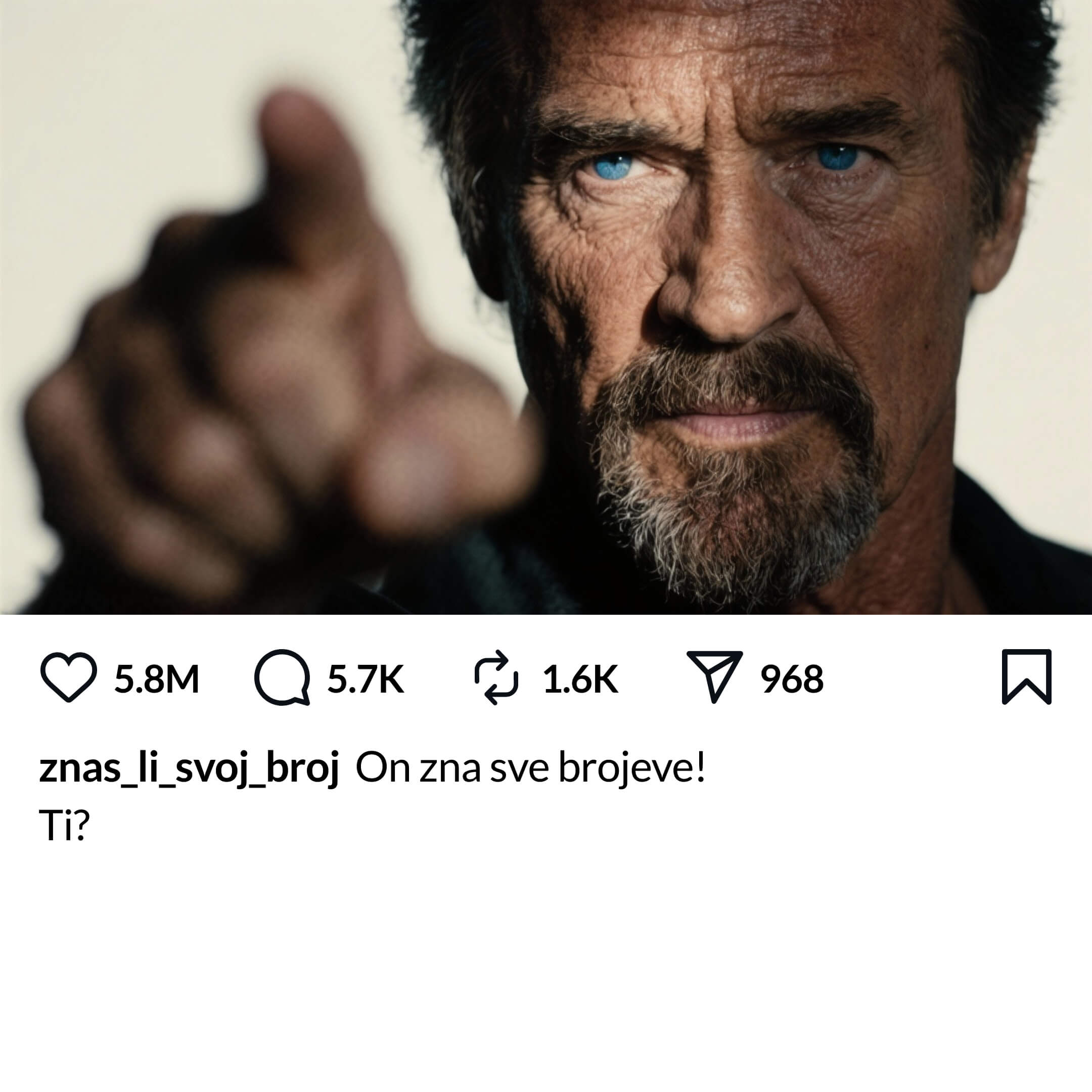
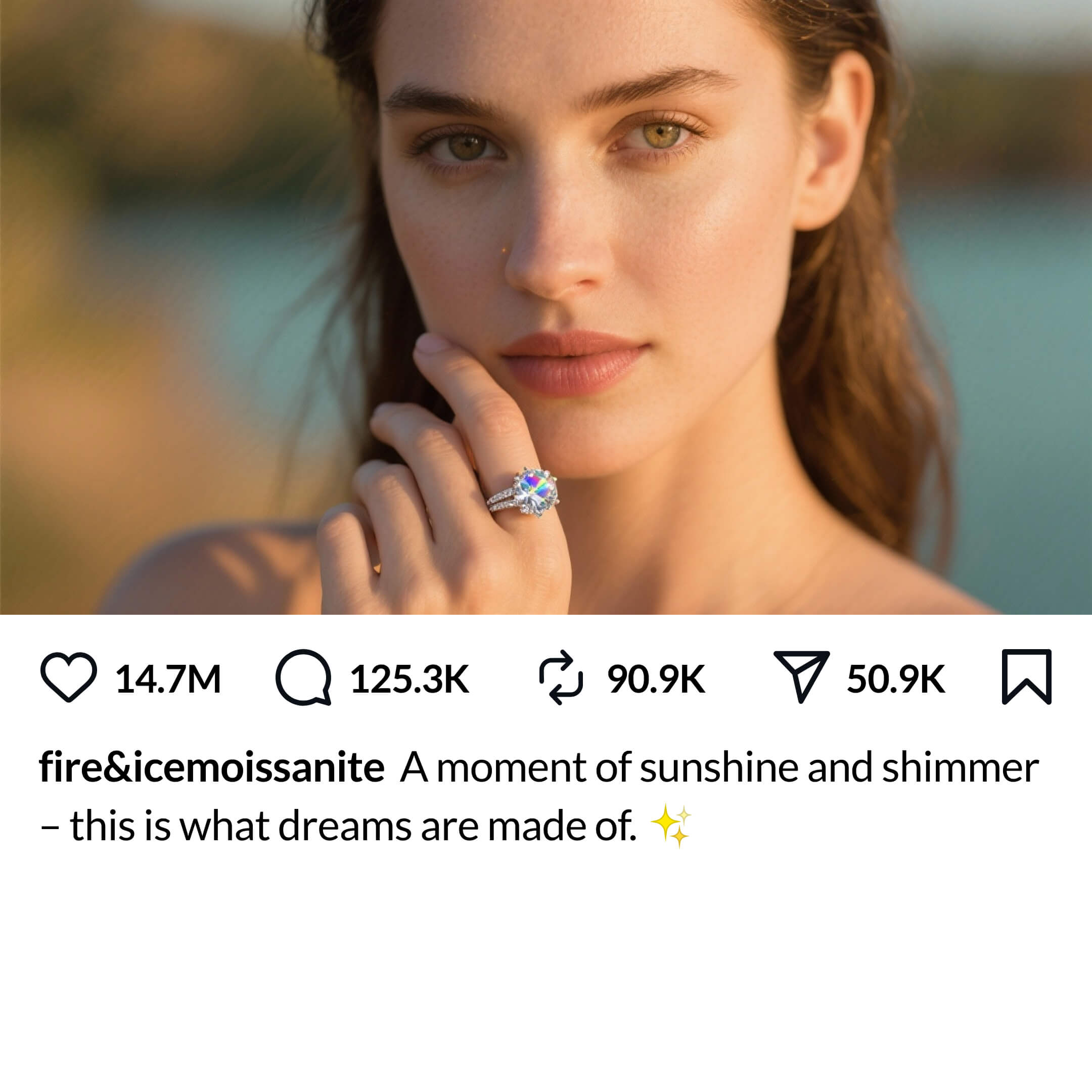
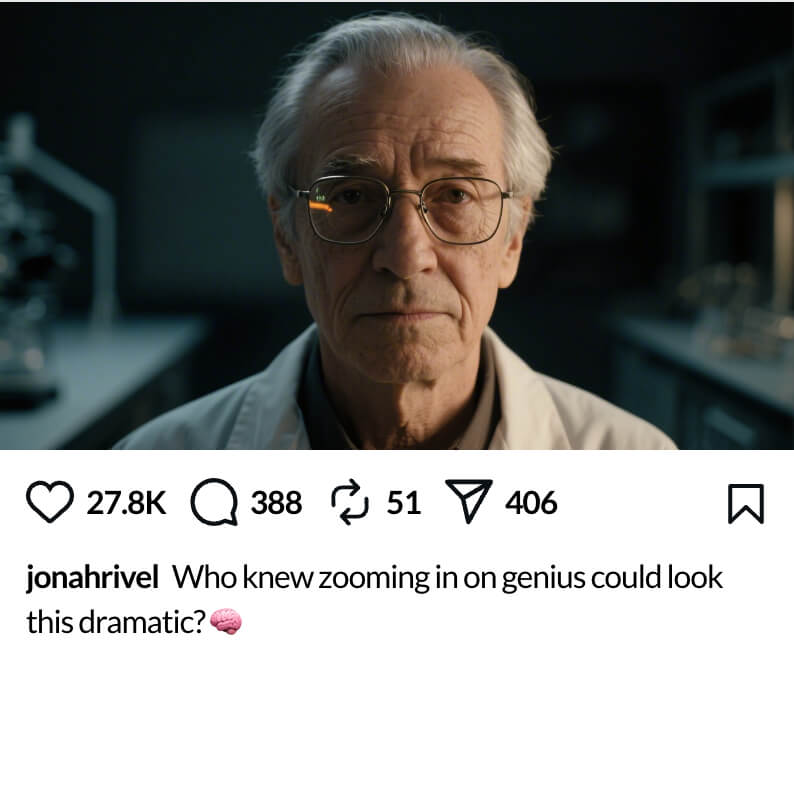
Fix: Pull back the camera to allow more space in the scene. Add the below phrases to your prompt to force the right framing.
Add close up shot to your prompt to get hip-to-head framing.
Add full body shot to your prompt to get full body framing.
Still stuck? Contact [email protected] with your exact prompt and video name.
A few things to keep in mind:
- Your prompt defines the starting scene only - you can't control the animation or movement. The pop-out effect is applied automatically.
- AI video generation can be unpredictable with specific details like facial expressions. Simpler, focused prompts tend to give better results.
If every variation gives you the same unwanted result, that's usually a fundamental prompting issue - further regenerations are unlikely to fix it. You'll need to adjust your prompt or try a different type of video.
AI video generation is creative and unpredictable - sometimes it nails your vision, sometimes it interprets things differently. This is where multi-generation comes in. We give you multiple videos at no extra credits:
- Pick 2 videos - Get 2 videos, uses the same credits as 1 video
- Pick 4 videos - Get 4 videos, uses the same credits as 2 videos
Every video also includes 1 free regeneration. Review the variations and pick the one closest to what you're after, and disregard the ones which didn't work, as they don't cost any extra credits.
First - make sure you're using multi-generation. AI video generation is creative and unpredictable - sometimes it nails your vision, sometimes it interprets things differently. Between variations and free regenerations, most pop-out issues resolve themselves. We give you multiple videos at no extra credits:
- Pick 2 videos - Get 2 videos, uses the same credits as 1 video
- Pick 4 videos - Get 4 videos, uses the same credits as 2 videos
Every video also includes 1 free regeneration. Review the variations and pick the one closest to what you're after, and disregard the ones which didn't work, as they don't cost any extra credits.
If all of your videos fail to pop out, it's likely a prompting or framing issue. Check your scene preview for these common problems:
Good setup checklist:
- Subject is fully visible - not cut off or hidden
- Adequate framing - entire torso + head visible at minimum, or full body
- Props fully visible - if holding a sign, the entire object must be in frame
- Close enough to the frame edge to pop out within the 5-second video
- Nothing blocking the path forward (no desks, counters, steering wheels)
- Facing the camera - not sideways or facing away
Common failure points:
- Too many subjects / busy scene - keep it simple: one [subject] in [environment]
- White background - conflicts with the white social post area below. Use a contrasting background colour.
- Bad framing - too close (just a face) or too far back (subject is tiny)
Still stuck? Contact [email protected] with your exact prompt and video name.
Prompting guide: ai.breakoutclips.com
The prompt optimizer is a guideline - it flags common issues like missing subjects, action verbs, or obstructed positions, but it can't predict exactly how the AI will interpret and animate your scene.
AI video generation is creative and unpredictable - sometimes it nails your vision, sometimes it interprets things differently. This is where multi-generation comes in. We give you multiple videos at no extra credits:
- Pick 2 videos - Get 2 videos, uses the same credits as 1 video
- Pick 4 videos - Get 4 videos, uses the same credits as 2 videos
Every video also includes 1 free regeneration. Review the variations and pick the one closest to what you're after, and disregard the ones which didn't work, as they don't cost any extra credits.
If all variations have the same issue, it's usually a fundamental prompting issue - further regens are unlikely to fix it. You'll need to adjust your prompt.
Still stuck? Contact [email protected] with your exact prompt and video name.
AI video generation is creative and unpredictable - sometimes it nails your vision, sometimes it interprets things differently. This is where multi-generation comes in. We give you multiple videos at no extra credits:
- Pick 2 videos - Get 2 videos, uses the same credits as 1 video
- Pick 4 videos - Get 4 videos, uses the same credits as 2 videos
Every video also includes 1 free regeneration. Review the variations and pick the one closest to what you're after, and disregard the ones which didn't work, as they don't cost any extra credits.
If all your variations have the same unwanted element, that's usually a fundamental prompting issue - further regenerations are unlikely to fix it. Adjust your prompt or try a different approach.
Still stuck? Contact [email protected] with your exact prompt, video name, and what elements appeared that shouldn't have.
The AI Video Maker generates an animation from a text prompt, and you can upload one reference image alongside your prompt to guide the AI. However, it's currently limited to one image per prompt.
The image upload button is available inside the prompt box at the Prompt step (here's a screenshot for reference).
Workaround for multiple images: If you'd like to include more than one image in your scene, you can combine them into a single image first using a free tool like ChatGPT, Canva, or any image editor. For example, ask ChatGPT to merge your product photo and logo into one scene layout, then upload that combined image as your single reference into Breakout Clips.
Full feature guide: breakoutclips.com/ai-video-maker/guide
Your logo has been saved to your Brand Kit, which is used in your social post design layout. It doesn't get automatically added to your scene, because not everyone wants a logo in every scene they create - so you need to add it at the Prompt step.
Here's how the two systems work:
- Brand Kit (Automatic) - Your Brand Kit logo is automatically applied to all social post layouts (Facebook, LinkedIn, Instagram layouts). You upload once, it's used for all future videos.
- Animation Scene (Manual) - Adding your logo inside the actual animation scene is handled separately. We don't automatically inject your logo into the scene, because not everyone wants their logo baked into every animation.
Why two different systems? Flexibility. Your Brand Kit handles the social post layouts automatically (Facebook, LinkedIn, Instagram layouts), while scene logos give you control over whether your logo appears in the actual animation. Some videos look great with a logo, others look better without one.
To add your logo inside the scene:
- Click the "Prompt" breadcrumb
- Upload your logo in the prompt box
- Resubmit your prompt
- Check the scene preview - your logo should now appear
Video walkthrough:
That logo is part of the original prompt, not from your Brand Kit. When you remix, the original creator's branding (logos, sign text, anything in quotation marks) stays in the prompt until you manually replace it.
How to fix it:
- Click the "Prompt" breadcrumb to go back
- Find the uploaded logo image or text inside quotation marks (e.g. "FOR SALE")
- Delete it
- Upload your own logo or replace the text with yours
- Resubmit the prompt
Video walkthrough:
Logos follow the same rules as text - anything you want rendered with 100% clarity needs to be big, bold, and clearly visible in the scene preview before you animate. If you're squinting to see it or it looks small in the preview, the AI will struggle too.
For logos specifically:
- Upload your logo at the Prompt step and reference it as "my uploaded logo"
- Specify placement in your prompt (e.g. "holding a sign with my uploaded logo")
- Make sure the logo area is large enough in the frame to be legible
- Check your scene preview before animating
Common logo mistakes:
- Logo on a business card - the card itself is too small
- Logo in the distant background - too far from camera
- Logo as a small element among many - gets lost in the scene
- Logo partially hidden behind the subject - the AI will try to reconstruct it and the result will look wrong
Still stuck? Contact [email protected] from the email associated with your Breakout Clips account, and include the following:
- Your video ID
- The exact prompt you used
- A screenshot of the issue
- An explanation of what went wrong
- Whether you used multi-generation, and if so, how many variations had the issue
This information upfront gets you a quicker resolution.
Your scene is defined at the Prompt step - so if you want to change anything in the scene, that's where you go.
- Click the "Prompt" breadcrumb to go back
- Find the text in the original prompt (it should be inside quotation marks)
- Replace it with the text you want
- Resubmit the prompt
Tips for getting text right:
- Always wrap text in
"quotation marks"so the AI knows exactly what to display - Keep it short - 2 to 4 words max. More words = harder to render clearly
- Use "big" before the object and "big bold" before the text (e.g. a big sign with big bold text
"SOLD")
There are two primary reasons text can change during animation:
1. Text is too small, unclear, or not fully visible in the scene preview
As the AI animates and scales up, it has to reconstruct what it sees, and unclear text often becomes distorted. Common examples where this goes wrong:
- Business cards - the card itself is so small that any text on it is tiny
- Book covers - subtitles and author names are too small to read
- Flyers and brochures - packed with multiple text elements at small sizes
- Distant signs or billboards - text is too far from camera to be legible
- Product labels - text on bottles, jars, or packaging is often too small to render clearly
To avoid this:
- Keep text short - 2 to 4 words max
- Make the text big, bold and visible
- Always wrap text in
"quotation marks"so the AI knows exactly what to display - Use "big" before the object (e.g. "a big sign") and "big bold" before the text (e.g. big bold text
"SOLD")
2. Text is positioned behind the subject and gets obstructed
When text is a background element (e.g. on a wall, billboard, or banner behind the subject), the subject may partially cover it. When the subject pops out, the AI tries to fill in what was hidden behind them - which makes the text look distorted or completely different. Add "Make sure the text is not obstructed by the primary subject, and is fully visible, in big bold letters" to your prompt.
Rule of thumb: If you're squinting to read it in the scene preview, edit your prompt or regenerate your scene until it's big, bold and visible. Scene previews do not use any credits - edit your prompt or regenerate until everything is clearly visible.
Still stuck? Contact [email protected] from the email associated with your Breakout Clips account, and include the following:
- Your video ID
- The exact prompt you used
- A screenshot of the issue
- An explanation of what went wrong
This information upfront gets you a quicker resolution.
Unfortunately not - with AI video generation, the text, images, and motion are all generated together in a single pass rather than as separate layers. There's no way to freeze the animation and just swap one element - any edit means a fresh render with a new, unique animation. This is how all AI video platforms work (HeyGen, Google Veo, and others all work the same way).
To change text, it depends on where the text is:
- Text inside the scene (signs, billboards, t-shirts) - Go back to the Prompt step, find the text, replace it, and resubmit
- Text in the social post caption (username, caption, reactions) - Edit at the Layout step
Every change requires a re-render. This is why you get a scene preview first - so you can double-check everything before using credits.
Remix lets you take any video from the Community Showcase and use it as a starting point for your own video. The original prompt, settings, and scene are pre-filled - you edit whatever you want and make it yours.
- Find a video you like in the Community Showcase
- Click "Remix"
- The original prompt and settings are pre-filled - edit whatever you want
- Submit and animate
What you can change: the prompt, your branding, aspect ratio - everything.
Common remix questions:
- I remixed but still see someone else's branding - how to replace logos and sign text
- Why doesn't my remix match the original? - every AI video is unique
- Can I control the animation? - what you can and can't change
Every AI-generated video is unique - even with the exact same prompt, you'll never get a 100% identical result twice. This is how all AI video platforms work (Runway, Pika, Sora, Luma included) - submit the same prompt twice on any platform and you'll get two different videos. Think of it like asking an artist to paint the same scene twice - the overall composition will be similar, but the details will always vary.
When you remix, you're reusing the same prompt and scene setup as a starting point - you're not copying the final animation. The text, images, and motion in an AI video are all generated together in a single pass rather than as separate layers, so there's no way to freeze the animation and just swap one element. Every render produces a unique result. See Can I change the text but keep the same animation? for more detail.
Use multi-generation to get several variations and pick the one closest to what you're after.
Don't worry - you don't lose any credits for videos that don't successfully render. Only successfully rendered videos deduct credits.
Video generation usually takes about 60 seconds. If it's taking longer, our servers may be under high demand - the platform will let you know if that's the case.
If the video is stuck for an extended period of time, or there's an error, contact [email protected] from the email associated with your Breakout Clips account and we'll investigate promptly.
Most video issues fall into one of these categories:
- Unwanted elements - the AI added something you didn't ask for (random objects, extra people)
- Text looks distorted - letters are garbled, unreadable, or changed during animation
- Logo looks different - your logo changed or distorted after animating
- Wrong branding - you see someone else's logo or the wrong text after remixing
- Subject didn't pop out - no 3D breakout effect
- Video won't render - stuck generating or failed
Click the relevant issue above for a step-by-step fix, or contact [email protected] from the email associated with your Breakout Clips account, and include the following:
- Your video ID
- The exact prompt you used
- A screenshot of the issue
- An explanation of what went wrong
- Whether you used multi-generation, and if so, how many variations had the issue
This information upfront gets you a quicker resolution.
Hmm, nothing matched that search.
Try shorter or different keywords, or browse by category using the filters above.
Still can't find what you're looking for? Reach out to our support team - we're happy to help.